Stay Informed: Latest AI Trends & Analysis
How to Use Vizard: Your AI Video Editor Companion
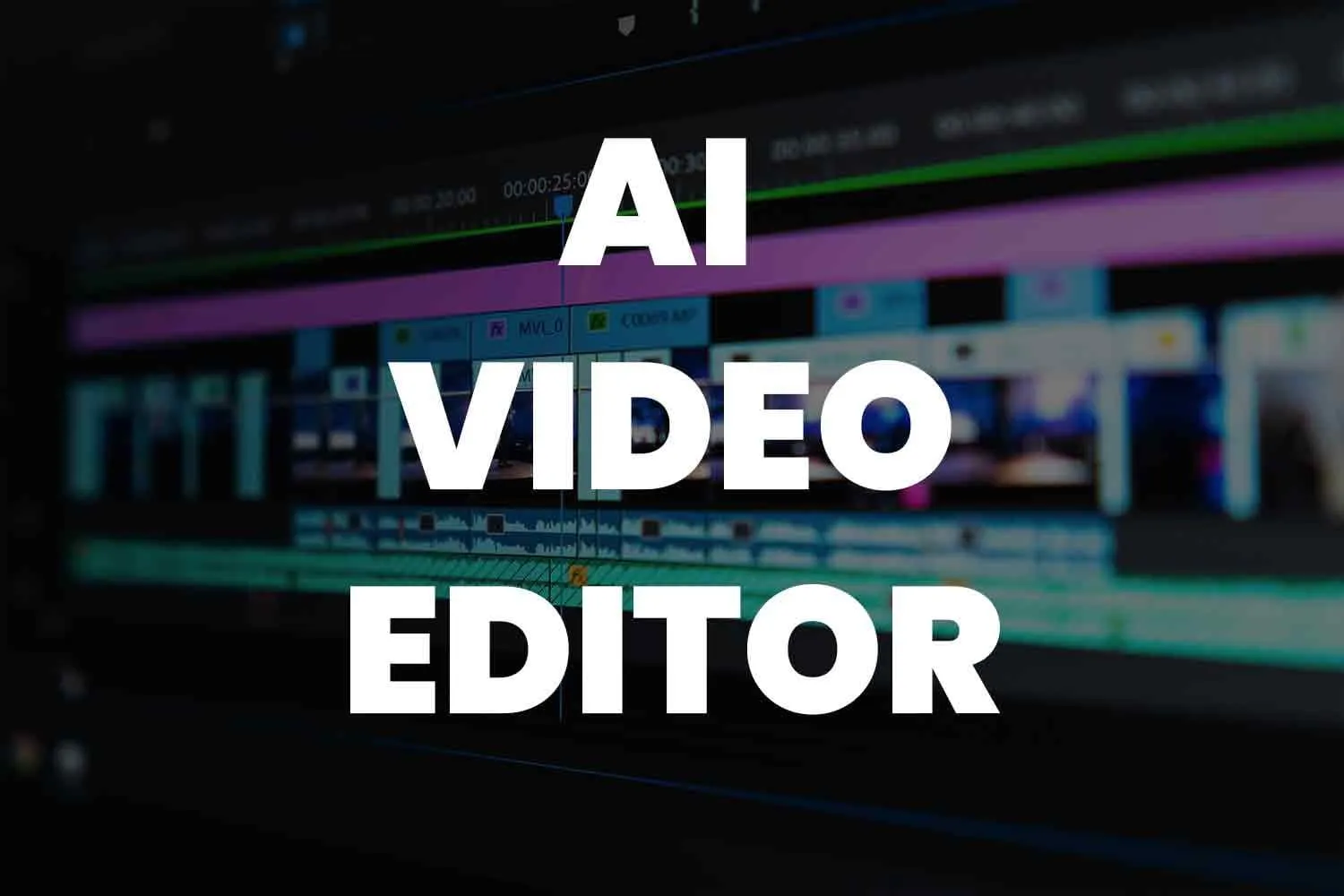
Editing video can be time-consuming, but what if you had a smart assistant that understood your content, chopped it into engaging clips, and even created captions? Vizard is that kind of AI-powered video editor. It's designed to simplify the process and empower creators across YouTube, TikTok, businesses, and education.In this comprehensive guide, we’ll walk you through what Vizard is, how to use it effectively, and why it’s a game-changer for modern content creators.What Is Vizard?Vizard is a web-based video editing platform powered by artificial intelligence. It allows you to:Automatically generate short video clips from longer footageEdit video by modifying the transcriptAuto-generate captions in multiple languagesApply professional templates and styling to your videoShare or export across platforms like YouTube, TikTok, Instagram, or download to your computerWho Is Vizard Made For?Vizard is ideal if you’re:A YouTuber producing tutorial or long-form contentA TikTok / Reels creator wanting bite-size, shareable clipsA business making short marketing or explainer videosA teacher building lesson videos or content for studentsAnyone who wants to create polished videos quickly and with easeStep-by-Step: How to Use VizardCreate an Account Go to Vizard’s website, sign up (free plan or paid), and choose a suitable plan based on your usage.Upload Your Source Video Add your raw video footage via file upload. You can also import from hosted platforms like YouTube — depending on the plan.Generate AI Clips Use Vizard’s AI to analyze your video and break it into shorter, compelling clips. You can specify clip length, highlight style, and which parts to emphasize.Edit Using Transcript Vizard transcribes the video — this means you can edit by changing the text. Modify the transcript and Vizard reflects those edits in the video timeline.Create & Customize Captions Enable auto-caption generation. You can also translate captions into different languages. The tool will embed subtitles into your clips or full video.Apply Video Templates & Styling Choose from a library of templates (for social media, presentations, or educational content). Customize by adding your logo, changing background or font styles.Export & Share Once you're happy, export your video in preferred resolution/format or directly share it to platforms like YouTube, TikTok, or Instagram.Tips & Best Practices for VizardKnow Your Audience: Tailor your clips based on where they’ll be shared (TikTok vs YouTube).Keep it Concise: Edit for clarity. Shorter, cleaner clips generally perform better on social media.Use Trending Audio: Combine Vizard’s clip generation with trending music or voiceovers for better engagement.Caption Everything: Since many users watch videos muted, captions can dramatically improve retention.Leverage the Transcript Editor: Editing via text is powerful — use it to remove filler words, reorder flow, or clarify meaning.Run Multiple Iterations: Try different highlight styles or lengths to find what resonates with your audience.Review Before Export: Always watch a preview after edits to ensure the output matches your vision.Vizard in Action: Real-World ExamplesSarah, the Baking YouTuber: Sarah recorded a long baking tutorial. Using Vizard, she chopped it into bite-sized tutorial highlight clips for TikTok and Reels, adding captions, and reused parts as Instagram content.Mr. Jones, the Teacher: A history teacher recorded his lectures and then transformed them into short, curriculum-aligned videos, complete with subtitles and clear structure — making lessons more digestible.Maria, the Small Business Owner: Maria used Vizard to turn behind-the-scenes footage into polished product showcase videos. She used templates, brand logos, and export settings to share on her store’s social media.Alternatives to VizardIf Vizard doesn’t quite fit your needs, here are some strong alternatives:Runway: A full creative suite with advanced generative AI capabilities, good for more experimental or cinematic effects.InVideo: Online editor with text-to-video generation and marketing-first templates.VEED: AI production studio that offers auto-subtitles, AI avatars, text-to-video, and more.Canva: While known for graphics, its video editor now supports animations, music, and simple video effects.Fliki: Transforms blogs or scripts into videos using AI voices and avatars.Final ThoughtsVizard is a genuinely powerful tool that democratizes video editing through AI. Whether you're repurposing long content, creating short-form social media videos, or producing educational material, Vizard simplifies the process and accelerates your production. By combining intelligent transcription, auto-clips, captions, and polished templates, it allows creators to focus more on storytelling and less on editing logistics.If you want to make video creation faster, smarter, and more fun, give Vizard a try — your next viral clip could be just a few clicks away.
Read More >>